
The digital battlegrounds of Call of Duty: Mobile are calling, but what happens when your phone slams the door shut? As the legendary Season 3 Vintage Vigilance continues its reign into 2026, countless soldiers find themselves locked out, staring at frozen screens and cursed loading icons instead of epic firefights. The frustration is palpable, the agony is real, but fear not! The path back to glory is paved with simple, yet often overlooked, technological rituals. Whether you're on iOS or Android, the ghosts of past updates and stubborn system glitches can be banished, allowing you to once again answer the call of duty.
Update or Perish! 🚨
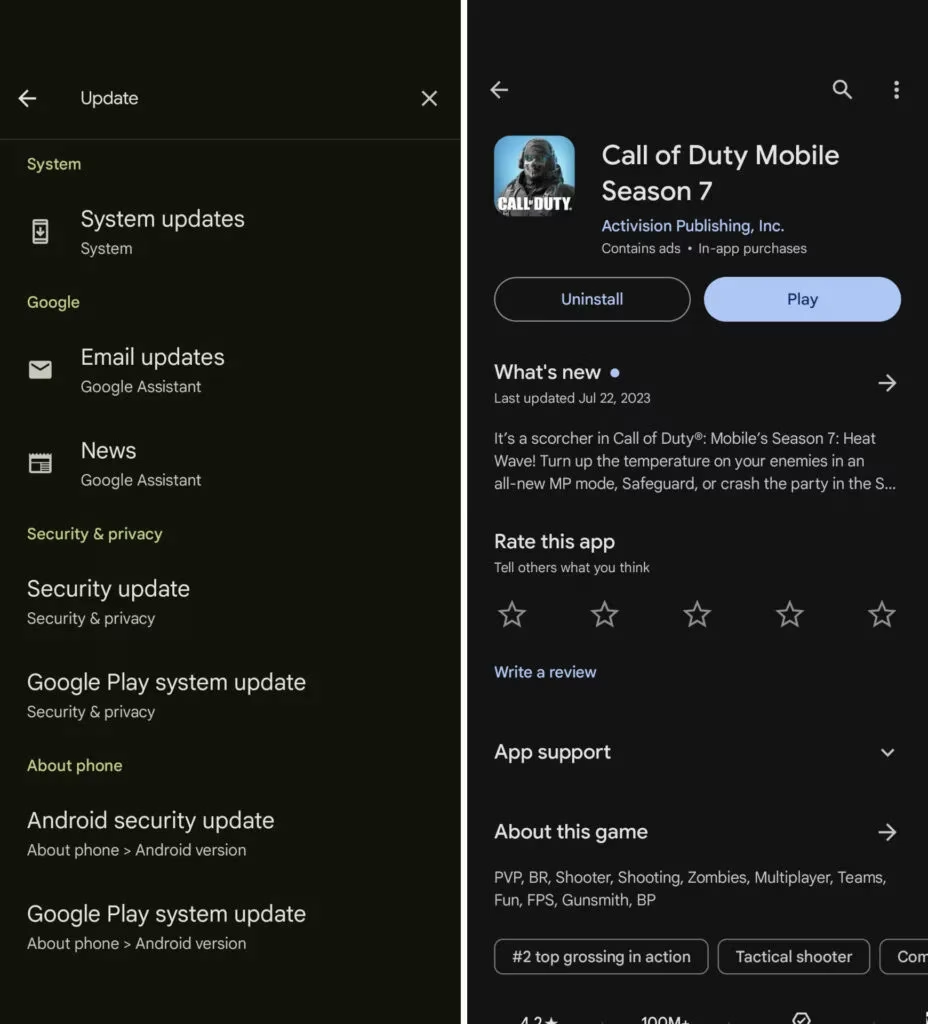
The single most common culprit for a CoD Mobile that refuses to start is an outdated game client. The game evolves constantly, and your app must evolve with it. Think of it like trying to use a rusty key in a brand-new, high-security lock—it simply won't turn. The solution is as straightforward as it gets, yet millions forget this crucial step.
For Android Warriors:
-
March directly to the Google Play Store.
-
Unleash the search bar and type "Call of Duty: Mobile".
-
If an "Update" button is glaring at you, TAP IT WITHOUT HESITATION! ⚡
-
Sit back, grab a snack, and let the digital download do its sacred work.
For iOS Operatives:
-
Your pilgrimage leads to the hallowed Apple App Store.
-
Perform the same search incantation: "Call of Duty: Mobile".
-
Witness the magic of the update button and initiate the process.
Remember, even after this update, launching the game for the first time in a new season might trigger an additional asset download. Patience, soldier! This is the game fetching all the new maps, weapons, and cosmetic glory of Vintage Vigilance.

Your Phone's System: The Silent Saboteur 😈
Sometimes, the enemy isn't the game—it's the very device in your hands. An outdated phone operating system can create a compatibility nightmare, causing crashes, freezes, and outright rebellion. Your phone's software is the foundation; if it's cracked, nothing built on top will stand. Here’s your system overhaul protocol:
-
Invade Your Settings: Navigate to your phone's main settings menu. This is your mission control.
-
Seek the Update: Look for "Software Update," "System Update," or a similar option. It's often hiding in the "About Phone" section.
-
Accept and Install: If an update is waiting, accept it immediately! Let your phone restart and transform.
-
The Nuclear Option: If, after the system update, CoD Mobile still plays dead, you may need to take drastic measures. Uninstall the game completely and perform a fresh reinstall. This clears corrupted data and gives you a pristine start.
Think of it this way: you wouldn't try to run the latest military simulation software on a computer from a decade ago. Your phone needs to be on the front lines of technology too!
The Almighty Restart: A Tale as Old as Time 🔄
Never, ever underestimate the cosmic power of turning something off and on again. This ancient tech incantation solves more problems than anyone cares to admit. A simple restart can clear stuck processes, free up clogged memory (RAM), and give your device a clean slate. The method varies by your weapon of choice:
| Device Type | Common Restart Method |
|---|---|
| Most Android Phones | Hold the Power button until the menu appears, then tap "Restart." |
| Google Pixel (e.g., Pixel 9) | Press and hold Power + Volume Up buttons simultaneously. |
| iPhone (Face ID models) | Press and hold Side button + Volume Up/Down, then slide to power off. |
| iPhone (Home button models) | Just hold the Side/Top button until the slider appears. |
If you're unsure of your device's exact ritual, a quick visit to your phone's settings to confirm its model name, followed by an internet search for "how to restart [Your Phone Model]," will reveal the sacred sequence.

Storage Space: The Invisible Battlefield 🧹
Here's a stealthy killer that many ignore. CoD Mobile, with all its high-definition textures, maps, and seasonal content, is a behemoth. If your phone's storage is bursting at the seams, the game has nowhere to unpack its essential files or create temporary data, leading to instant crashes on startup. Perform a storage audit!
-
Check Your Storage: Go to Settings > Storage. See that terrifying red bar? That's your enemy.
-
Purge the Unnecessary:
-
Delete old screenshots and videos you'll never look at again.
-
Clear cache for apps like social media (this can free up GIGABYTES).
-
Uninstall games you haven't touched since 2025.
-
-
Aim for Breathing Room: Don't just clear enough space for the game. Leave a healthy buffer of 5-10GB free. Your phone needs room to operate smoothly.
Network Necromancy: Raising a Stable Connection 📶
A poor or unstable internet connection during the initial launch or asset download can corrupt files, making the game unstable. Switch between Wi-Fi and mobile data to see if one is more stable. If on Wi-Fi, try restarting your router—the classic "unplug it for 30 seconds" maneuver works wonders. For the truly desperate, using a VPN can sometimes bypass weird regional network issues that interfere with game servers.
By following these commandments—Update the Game, Update Your Phone, Restart Everything, Free Up Space, and Secure Your Network—you stand a 99.9% chance of storming back into the action. The warzone of Vintage Vigilance awaits your triumphant return. Now gear up, soldier, and get back in the fight! 💥🎮